

- PRODUCTSFREEWAREFOR COMMERCIAL USEFOR PERSONAL AND BUSINESS USEBackup and System Restore:PC Privacy and Security:
- BUY ONLINE
- DISTRIBUTION
-
R-Drive Image and Virtual Machines


Virtual machines, or digital versions of hardware computers, are widely used in data centers for web servers, colocations, cloud computing, software development for other platforms, etc. As their physical counterparts, they also require maintenance, such as data backups and restores. In addition to these operations, a virtual machine may require partition management, disk copying, connecting virtual drives, etc. Likewise, their host system requires these operations as well.
Our program, R-Drive Image, is specifically tailored for these purposes. It can be used in 2 ways for virtual machines:
- On a virtual machine to serve it.
- On the host system where the virtual machine is running to serve the host system and to serve virtual drives from virtual machines on this system.
Our article will give you some examples of how to do this. But before we begin, there's an important licensing information: R-Drive Image treats virtual machines as real hardware computers, so you need to obtain a Standalone license for each virtual machine as well as for the host system (Corporate license for servers). Every installation of R-Drive Image requires proper activation, which binds it to a specific hardware platform, whether physical or virtual. You may transfer a registered/bound Standalone/Corporate license from one virtual machine to another, but not backwards. Say you may transfer a license from Machine A to Machine B, but you can't return the license from Machine B to Machine A, even if you completely remove R-Drive Image from Machine B. R-Drive Image won't be activated on Machine A with the same license anymore. This clause is applicable to Startup versions, too. You may read more about license transfer in our article R-Drive Image Standalone and Corporate license transferring.
Alternatively, you can obtain a single Technician license that covers all virtual machines and the host system, allowing license transfer between them as many times as required. However, if you choose the Technician license, remember that you can run only one instance of R-Drive Image Technician at a time. You will need to deactivate R-Drive Image on one machine before activating it on another. Additionally, all scheduled tasks, scripts, and related files will not be executed and R-Drive Image will show failed tasks when activated again. Therefore, if you plan to actively use R-Drive Image on multiple virtual machines and the host system, Standalone/Corporate licenses for each machine will be the best option.
1. R-Drive Image can be run on a virtual machine.
It will work as this is a real computer. You may use it for disk imaging, data backup, partition management, and other disk operations.
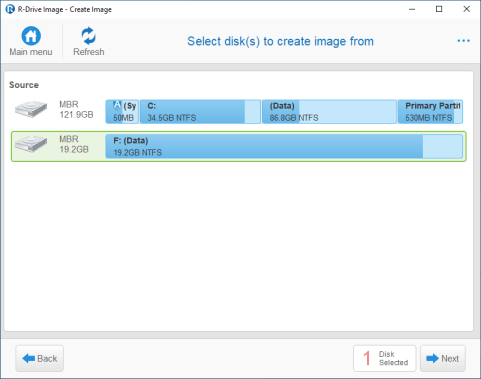
Click image to enlarge
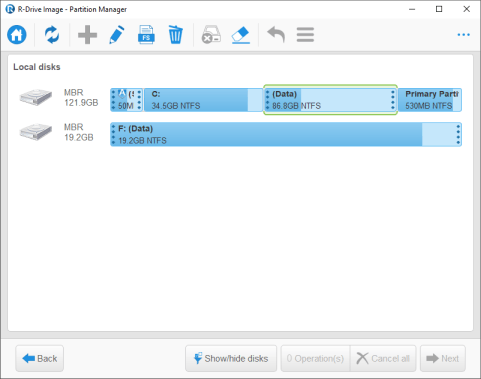
Click image to enlarge
If necessary, the R-Drive Image Startup version can be used as well.
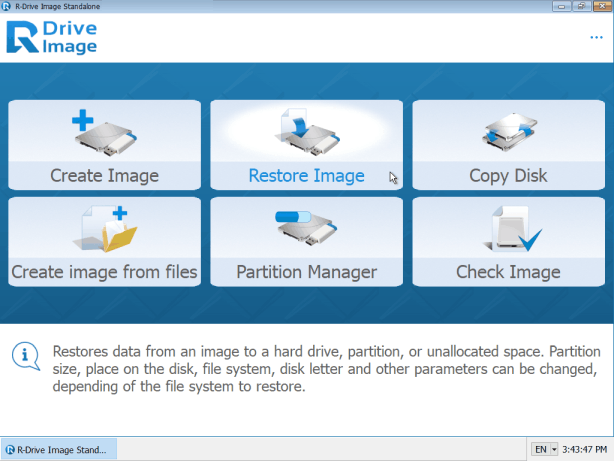
Click image to enlarge
2. R-Drive Image can be run on the host system.
It can be used to serve the host computer or virtual drives from virtual machines.
A quite unique feature of R-Drive Image is its ability to load and process virtual drives (file containers) from most virtual machines (Hyper-V from Microsoft, VMware, and Oracle VM VirtualBox). For example, you may open a virtual disk image from a virtual machine and mount it on the host system as a read-only drive.
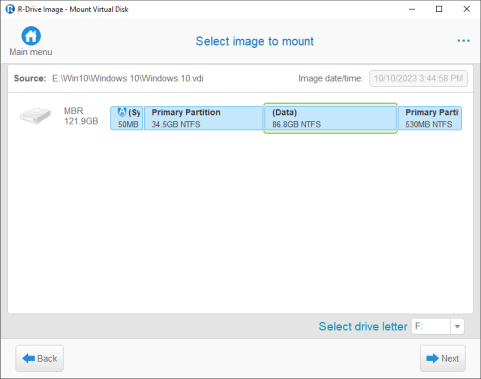
Click image to enlarge
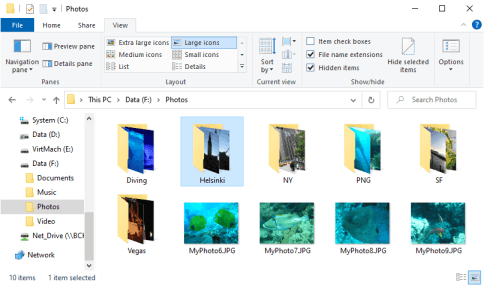
Click image to enlarge
Conclusion
As our article shows, R-Drive Image can be used on virtual machines the same way it is on physical ones. It can perform all disk operations, including disk imaging, data backup, and partition management. In addition, R-Drive Image installed on the host system can open virtual disks of virtual machines to provide access to files on those drives or mount them on the host system.
- R-Studio Technician: activation using a USB stick
- Data Recovery Guide
- Why R-Studio?
- R-Studio for Forensic and Data Recovery Business
- R-STUDIO Review on TopTenReviews
- File Recovery Specifics for SSD devices
- How to recover data from NVMe devices
- Predicting Success of Common Data Recovery Cases
- Recovery of Overwritten Data
- Emergency File Recovery Using R-Studio Emergency
- RAID Recovery Presentation
- R-Studio: Data recovery from a non-functional computer
- File Recovery from a Computer that Won't Boot
- Clone Disks Before File Recovery
- HD Video Recovery from SD cards
- File Recovery from an Unbootable Mac Computer
- The best way to recover files from a Mac system disk
- Data Recovery from an Encrypted Linux Disk after a System Crash
- Data Recovery from Apple Disk Images (.DMG files)
- File Recovery after Re-installing Windows
- R-Studio: Data Recovery over Network
- How To Use R-Studio Corporate Package
- Data Recovery from a Re-Formatted NTFS Disk
- Data Recovery from an ReFS disk
- Data Recovery from a Re-Formatted exFAT/FAT Disk
- Data Recovery from an Erased HFS Disk
- Data Recovery from an Erased APFS Disk
- Data Recovery from a Re-Formatted Ext2/3/4FS Disk
- Data Recovery from an XFS Disk
- Data Recovery from a Simple NAS
- How to connect virtual RAID and LVM/LDM volumes to the operating system
- Specifics of File Recovery After a Quick Format
- Data Recovery After Partition Manager Crash
- File Recovery vs. File Repair
- Data Recovery from Virtual Machines
- How to Recover Files from a Remote Computer Using R-Studio Standalone License and Its Network Capabilities in Demo Mode
- How to Connect Disks to a Computer
- Emergency Data Recovery over Network
- Data Recovery over the Internet
- Creating a Custom Known File Type for R-Studio
- Finding RAID parameters
- Recovering Partitions on a Damaged Disk
- NAT and Firewall Traversal for Remote Data Recovery
- Data Recovery from an External Disk with a Damaged File System
- File Recovery Basics
- Default Parameters of Software Stripe Sets (RAID 0) in Mac OS X
- Data Recovery from Virtual Hard Disk (VHD/VHDX) Files
- Data Recovery from Various File Container Formats and Encrypted Disks
- Automatic RAID Parameter Detection
- IntelligentScan Data Recovery Technology
- Multi-pass imaging in R-Studio
- Runtime Imaging in R-Studio
- Linear Imaging vs Runtime Imaging vs Multi-Pass Imaging
- USB Stabilizer Tech for unstable USB devices
- Joint work of R-Studio and PC-3000 UDMA hardware
- Joint work of R-Studio and HDDSuperClone
- R-Studio T80+ - A Professional Data Recovery and Forensic Solution for Small Business and Individuals Just for 1 USD/day
- Backup Articles
- R-Drive Image Standalone and Corporate license transferring
- Fixing Windows update error 0x80070643 with R-Drive Image
- Backup with Confidence
- R-Drive Image as a free powerful partition manager
- Computer Recovery and System Restore
- Disk Cloning and Mass System Deployment
- Accessing Individual Files or Folders on a Backed Up Disk Image
- R-Drive Image startup / bootable version
- File Backup for Personal Computers and Laptops of Home and Self-Employed Users
- Creating a Data Consistent, Space Efficient Data Backup Plan for a Small Business Server
- How to Move the Already Installed Windows from an Old HDD to a New SSD Device and Create a Hybrid Data Storage System
- How to Move an Installed Windows to a Larger Disk
- How to Move a BitLocker-Encrypted System Disk to a New Storage Device
- How to backup and restore disks on Linux and Mac computers using R-Drive Image
- R-Drive Image and Virtual Machines
- Undelete Articles
- Get Deleted Files Back
- Free Recovery from SD and Memory cards
- R-Undelete: Video Recovery
- Recovery from an External Device with a Damaged File System
- File recovery from a non-functional computer
- Free File Recovery from an Android Phone Memory Card
- Free Photo and Video File Recovery Tutorial
- Easy file recovery in three steps
Rating: 4.6 / 5
However, what I wanted to suggest is that you create a Home version of your software that may have slightly ...
https://www.drive-image.com/DriveImage_Help/restorefromanimage.htm
For example, there is no ` Restore from an Image` on the GUI. Instead there is `Restore Image`. And there is no `Image File Selection` on the GUI. Instead there is `Select image file`. And so on... My suggestion is to open the app, go through a file restore, write down the steps exactly as done, and then ...